Paid Resources Tab
What is the process of associating a subscription key to a paid resource?
To associate a subscription key, take the following steps:
- Login to the USP Access Point account: https://register.usp.org
- Click the Paid Resources tab.
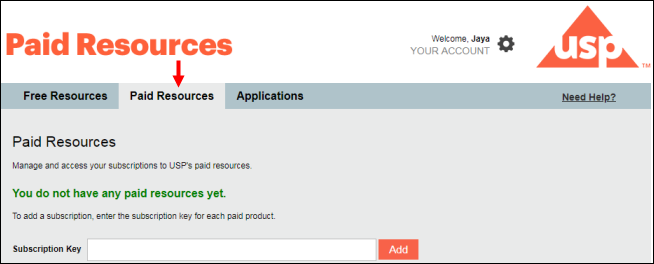
- In the Subscription Key field, enter the key you have received in your email after the product purchase.
- Click the Add button. This shows the associated resource listed at the bottom of the screen. An example is shown:
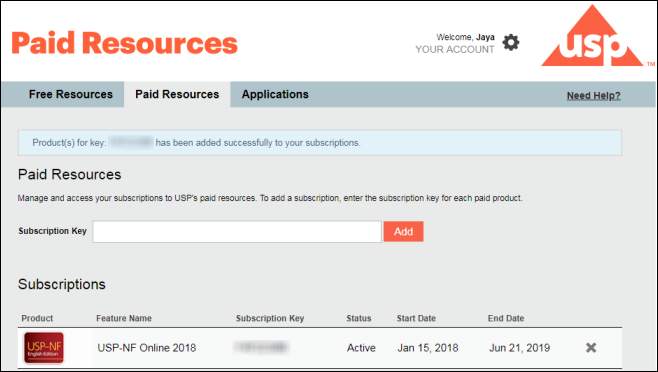
If you are subscribed to any other USP resource, add the subscription key here as well. - Click on the product icon to launch the application. This launches the application in another browser tab.
Can I remove my subscription key?
Yes, click the  icon in the subscription line to remove a subscription from the list. It will ask for a confirmation before removing from this page.
Free Resources Tab
What can I do in the Free Resources tab? Or, How do I subscribe to USP's free resources?
The Free Resources tab lists USP's freely available publications or applications that you can subscribe to. The following USP free resources will use the same Access Point account:
- Chromatographic Columns
- Herbal Medicines Compendium
Applications Tab
What can I do in the Applications tab?
The Applications tab lists the following USP applications that you can access using your Access Point account:
- Call for Candidates
- Call for Resolutions - Access to this application will require additional USP approval. Please visit http://resolutions.usp.org/frequently-asked-questions for more information.
- USP Education
- Council of Experts - Access to this application will require additional USP approval. Please visit http://www.usp.org/about/volunteer-experts for more information on becoming a Council of Experts member.
- Donor Submission Portal – Access to this application will require additional USP approval. Please visit https://donors.usp.org for more information on creating a donor account.
Admin Tab
Overview
USP's System Administration License Management Tool (Admin Tool) is designed to administer and manage subscriptions within an organization and to monitor application usage. The tool will allow a system administrator (system admin) to assign users, create Access Point accounts, review which users are accessing the application, identify unused seats, and add or remove specific users as needed.
What are the responsibilities of the system admin?
The system admin is responsible for managing their organization's subscription by:
- Assigning users to the subscription keys to provide access to USP paid online resources such as USP-NF Online and Food Chemicals Codex (FCC) Online
- Disassociating users from the subscription key
- Creating USP Access Point Users in bulk and assigning them to their subscription key
- Managing and viewing the total number of seats for a subscription
How do I become a system admin?
To become a system admin, follow the steps outlined below:
- Purchase an online paid resource such as USP-NF or FCC from the USP iStore. After you buy a USP resource, you will receive a subscription key.
- If you are not an existing USP Access Point user, then follow the registration steps to create your account in Access Point. Use https://register.usp.org to launch the Access Point website.
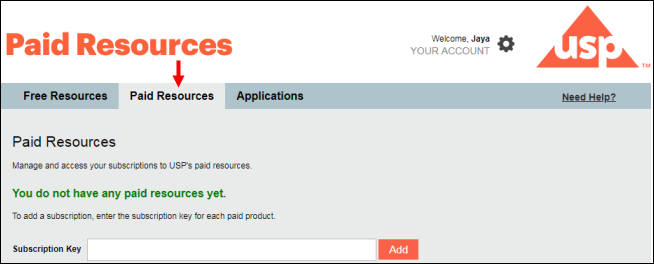
- Log in to Access Point and associate the subscription to your account by going to the Paid Resources tab (see below).
- Contact your USP Account Manager here and ask them to assign you the system admin role.
Note: For one subscription, up to 5 users can be assigned the system admin role. These users must have created their Access Point accounts before they can be assigned the system admin role. - Your USP Account Manager will notify you once the system admin role has been designated to you within the Access Point system.
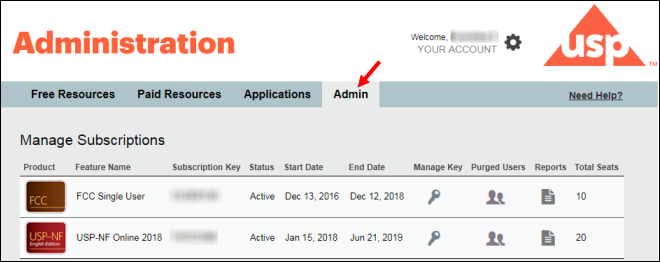
- After you have been assigned the system admin role, log in to the Access Point website again. You should be able see the Admin tab (see the screen below) which grants you access to USP's System Administration License Management Tool (Admin Tool).
How do I navigate the Admin tab?
The Admin tab displays the list of paid USP product subscriptions that you can manage. It may display one or more products based on the number of subscription-based products you have purchased from USP.
The Admin tab displays the following information and will allow you to add or delete users into the product's subscription:
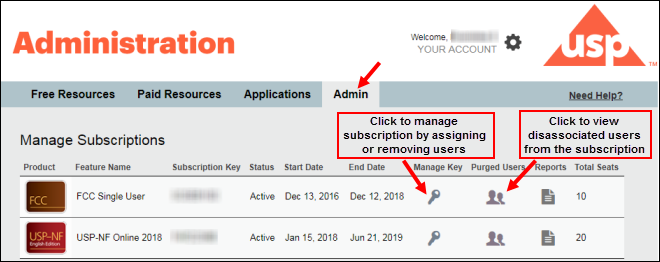
The following list explains each column in the Manage Subscriptions page of the Admin tab:
- Product- Displays the subscribed product icon that you can click to launch the product
- Feature Name- Displays the type of subscription purchased, e.g., Enterprise or Single User
- Subscription Key- Displays the subscription key of the product
- Status- Displays the subscription status
- Start Date- Displays the start date of the subscription
- End Date- Displays the subscription's expiration date
- Manage Key- Click the
 icon to start managing the product subscription for your organization's users. This will launch the "Manage Users for Key" page.
 - Purged Users- Click the
 icon to launch the "Purged Users" page to view the list of email addresses of users who have not verified their Access Point accounts within 30 days. After 30 days, the system deletes these accounts and frees up the subscription seats. Note: These users' accounts were created by the system admin.
 - Reports Click the
 icon to generate the product usage and login report of all users or a specific user in a subscription.
 - Total Seats- Displays the total number of seats for the paid subscription. You can only add users up to the maximum number of seats. All users, including system admins, count against this total.
What is a Verified user?
A Verified user is an individual who already has an Access Point account and has successfully verified their subscription using the email verification process. Click Access Point Registration Tutorial for a video tutorial on user registration or click User Account Registration Page for more information on email verification.
How do I associate a single user to the subscription key? Or, how do I associate an existing Access Point user with the subscription key?
Note: Ensure that the user already has an Access Point account and is a verified user. You must also know the user's registered email address.
To associate a single user with the product subscription:
- Log in to the Access Point (https://register.usp.org).
- Click on the Admin tab.
- In the "Manage Subscriptions" page, click the icon in the Manage Key column.
- In the "Manage Users for Key" page, click the
 button.
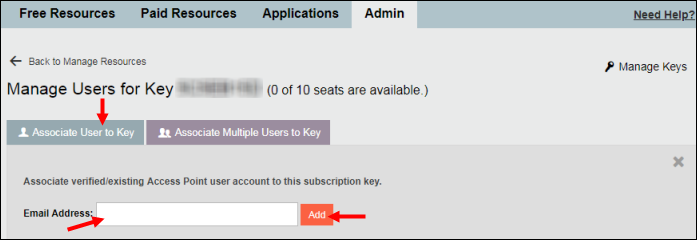
- Enter the user's email address in the Email Address text box.
- Click the
 button. A message will be displayed showing the successful completion of this process.
 - Refresh the page by pressing the F5 key on your keyboard. The added user will appear in the "Manage Users for Key" page list. The total number of seats for the subscription will also be updated to reflect the remaining seats.
Note: The assignment of the user will fail when the number of total seats in a product subscription is already taken. You will be notified in a message at the top of the page.
What does the Associate User to Key button do on the "Manage Users for Key" page?
The button will allow you to associate an existing verified Access Point user to the product subscription key. A verified user is an individual who already has an Access Point account and has successfully verified their subscription using the email verification process.
What does the Associate Multiple Users to Key button do on the "Manage Users for Key" page? Or, How do I add multiple users to a subscription?
The  button will allow you to add multiple users (Verified and Not Verified) and associate them to the product subscription key. When using this button, the system admin must take the following steps:
- Click the button on the "Manage Users for Key" page.
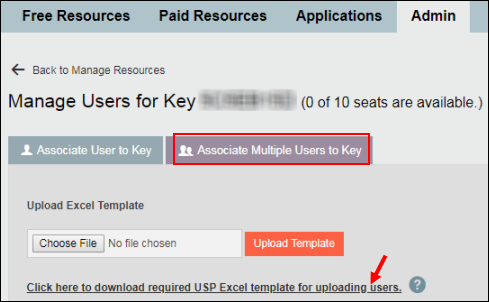
- Click the template file link (see arrow above) to download the USP-provided Excel template.
Note: You can only use the template provided by USP within this tool. Using another file format will result in an error message. - Populate the Excel file with the users' information. When entering user information in the Excel file, the following conditions must be met:
- All mandatory fields (marked with an asterisk [*] in the column heading) must be filled.
- The email address should be entered in the correct format.
- Save the Excel file.
- Click the
 button to locate the file and then click the
  button. After successful upload, a message will appear at the top of the page.
 - Refresh the page by pressing the F5 key on your keyboard. The added users will appear in the "Manage Users for Key" page list. The total number of seats for the subscription will also be updated to reflect the remaining seats.
Note: If the upload fails, you will receive a message indicating incomplete or wrong entries in the Excel file or that only some users are added. The message will specify the reason(s) for failure to upload and appropriate actions to fix the issue.
Note: This process will also create new Access Point accounts for those users who do not have Access Point accounts. Additionally, it will also associate those newly created account with the subscription key. However, the existing Access Point users only get associated with the subscription key. The following rules apply when users are associated with the subscription key:
- Users can only be added to the system using the Excel file supplied by USP.
- The number of users that will be added from the Excel file will depend on the number of remaining seats available in the subscription. If the number of seats available in the subscription is less than the number of users entered in the Excel sheet, the system will stop at the row where all the seats are filled and will generate an error message.
- If a user already has a USP Access Point account, but is not associated with the subscription key, the system associates the user's email address with the key and ignores all other fields for that particular row in the Excel file.
- An existing Access Point user will receive an email about their association with the subscription key.
- If a user does not have an Access Point account, the system will create an Access Point account for that user. The user will receive an email about the account creation with instructions to set up a password. The email also informs the user about the subscription to the product. After a user sets the password by clicking the email link, the user gains the status of Verified user.
- If a newly created Access Point user has not set up a password within 30 days of the email notification, the system disassociates the key from the email address and deletes the user account from Access Point.
What does the Purged Users icon do on the "Manage Users for Key" page?
Click the icon. This will open the "Purged Users for Key" page, which presents a list of email addresses associated with users who have not verified their Access Point accounts (set up passwords) within 30 days. After 30 days, the system deletes these accounts and frees up the subscription seats.
These users' accounts were created by the system administrator using the Associate Multiple Users to Key feature. If the newly created users fail to set up new passwords for their accounts within the 30-day verification period, the system deletes their USP Access Point accounts as well as their subscription key associations. The subscription seats for the deleted users become available for additional Access Point users.
Where can I view the total number of purchased seats for my organization?
The Total Seats column in the Admin tab indicates the total number of seats purchased for the subscribed product.
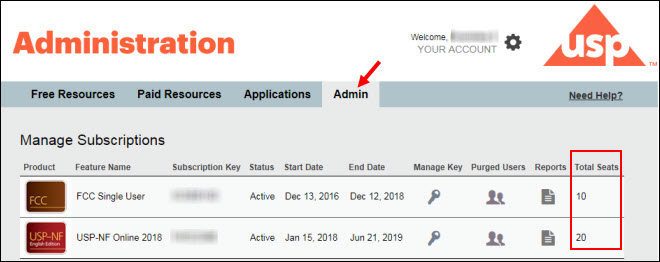
How will I know the number of remaining seats for my subscription?
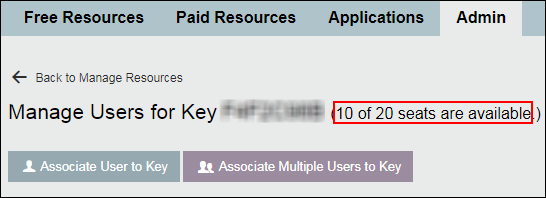
Log in to Access Point. In the Admin tab, click the icon in the Manage Key column. The "Manage Users for Key" page opens. The heading of this page lists the number of available spots in the subscription. An example is shown below:
How do I create Access Point accounts for multiple users in my organization and assign them to the subscription key?
The button on the Admin tab of Access Point will allow the system admins to create multiple Access Point accounts and associate them with the subscription key in bulk or at one time.
To create multiple Access Point accounts and associate them with the subscription key:
- Log in to your Access Point account using the http://register.usp.org URL.
- Click the Admin tab and then click the icon. The "Manage Users for Key" page opens.
- Click the button.
- Click the template file link (see arrow above) to download the USP-provided Excel template. Note: You can only use the template provided by USP within this tool. Using another file format will result in an error message.
- Populate the Excel file with the users' information. When entering the user information in the Excel file, the following conditions must be met:
- All mandatory fields (marked with asterisk [*] in the column heading) must be filled.
- The email address should be entered in the correct format.
- Save the Excel file.
- Click the button to locate the file and then click the button.
- After successful upload, a message will appear at the top of the page.
- Refresh the page by pressing the F5 key on your keyboard. The added users will appear in the "Manage Users for Key" page list. The total number of seats for the subscription will also be updated to reflect the remaining seats.
Each newly created Access Point user will receive an email asking them to set up their Access Point account password. After they follow the directions to set up their password, they will be able to log in to Access Point and will have access to the product.
How do I disassociate a user from a subscription key?
To disassociate a user:
- Log in to Access Point using the https://register.usp.org URL.
- Click the Admin tab.
- Select the icon in the Manage Users column.
- In the "Manage Users for Key" page, either select a user in the list, or find a user using the Search field.
- Click the icon to remove the user's association with the subscription key. A confirmation message will appear.
Note: A system admin cannot be disassociated from the subscription key. - Click OK in the confirmation message. The user is removed from the subscription and can no longer access the product.
IMPORTANT: Although the user's Access Point account has been disassociated from the subscription key, the user's Access Point account will still be active.
Note: Once a user's account has been disassociated, you cannot view a list of the disassociated users in the Admin tool.
How do I download the USP-provided Excel file template to upload multiple users?
USP will provide an Excel file template that you MUST download and use for creating the user list. The template is available when you click the button on the "Manage Users for Key" page. Download the Excel file template and populate it with user information. When entering user information in the Excel file, the following conditions must be met:
- All mandatory fields (marked with asterisk [*] in the column heading) must be filled.
- The email address should be entered in the correct format.
Save the file. Refer Manage Users for Key for more details on uploading the file.
How do I generate a report of user data?
The Reports option will allow you to view usage/session reports of all users or of a specific user by the email address associated with the subscription key. You can generate report by specifying the time frame in the drop-down box and/or by entering the email address of an associated product’s user.
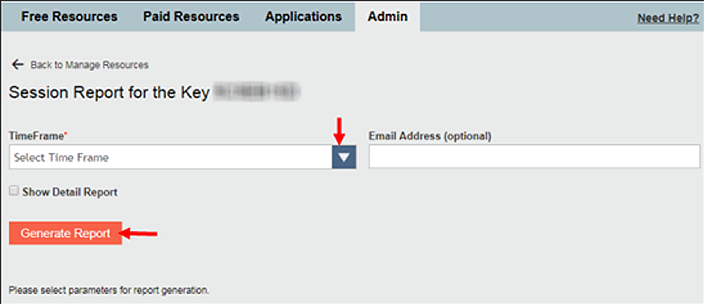
Click the Generate Report button to view report data of the user(s) in a table. You also have an option to view a detailed report with login and logout times of users by clicking the Show Detail Report checkbox. An example is shown below:
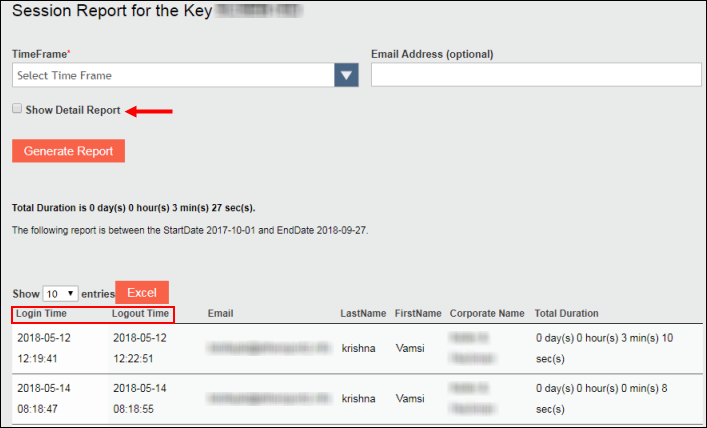
You can also download the report data in an Excel file by clicking the Excel button.
How do I transfer associated Access Point user accounts to a new subscription key?
Please refer to the attached PDF for detailed instructions.
When renewing subscription or receiving a new subscription key, how do I easily transfer all users to the new key? How can I use the Download All Users List feature?
Please refer to the attached PDF for detailed instructions.
What is the whitelist/blacklist feature?
When you want to add or exclude specific users and domain from the applications subscription, you can add them in the Admin tab of Access Point.
This ensures the added user can access the application and the excluded user is unable to access the application. This feature is also known as whitelist/blacklist feature.
For the added domain, any user with the domain email will be able to access the application if the maximum seat limit is not fulfilled.
For the excluded domain, any user with the domain email will not have access to the application.
Important: if a user is added to excluded list then to empty the seat, the admin must delete the user from the list. Even if a user is excluded, until and unless they are deleted from the seat, a seat will be occupied and will be counted towards the maximum limit.
How do I navigate to use the whitelist/blacklist feature?
To access this feature:
- Log in to the Access Point (https://register.usp.org).
- Click on the Admin tab.
- Click the key
 icon under the Manage key column.
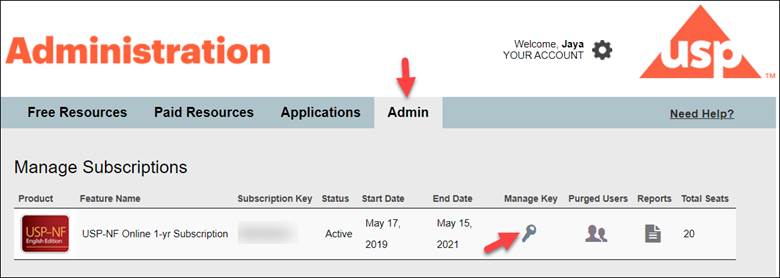
- In the Manage Key page that opens, scroll down to see the Allowed Domain/Users and Excluded Domain/Users section.
- The Allowed Domain/Users is the whitelist feature.
- The Exclude Domain/Users list is the blacklist feature.
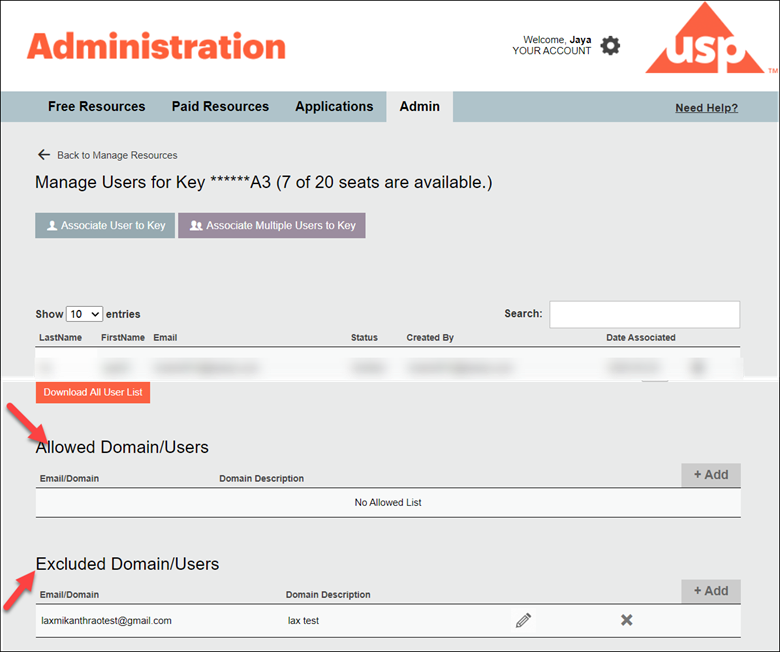
How do I allow/add specific users or domain to always access the USP publications or how do I use the Allowed Domain/Users (whitelist) feature?
The Allowed Domain/Users section is the whitelist feature and is located under the list of users for each subscription key under the Admins Manage Key column and is accessible by clicking the Key icon.
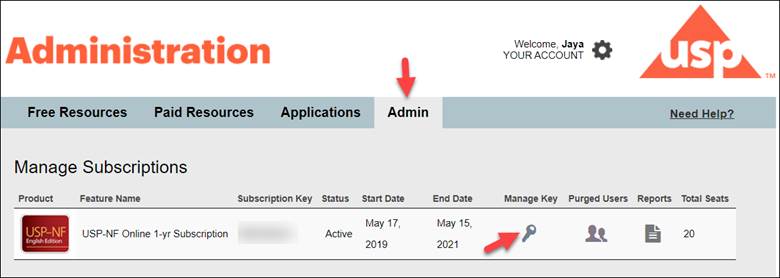
To whitelist or to allow either an individual email address or a domain to your subscription key:
- Click on the +Add button.

- Enter in the individual email address or the email domain under Email/Domain. Please note that the @ is not necessary if you are adding an email domain. For example, just enter google.com.
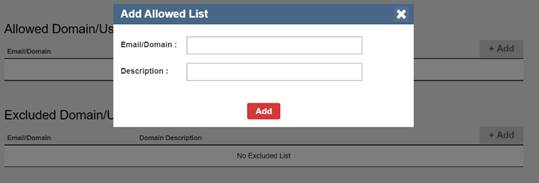
- Optionally, you can add a description of what you are adding if necessary.
- Click Add to add the entry in the list.

Once added, you can remove an individual user or an email domain by clicking on the x icon.
Once added, you can also edit an individual user or an email domain by clicking on the pencil icon.
How do I exclude users or domain from accessing the USP publications or how do I use the Excluded Domain/Users (whitelist) feature?
The Excluded Domain/Users section is the blacklist feature and is located under the list of users for each subscription key under the Admins Manage Key column and is accessible by clicking the Key icon.
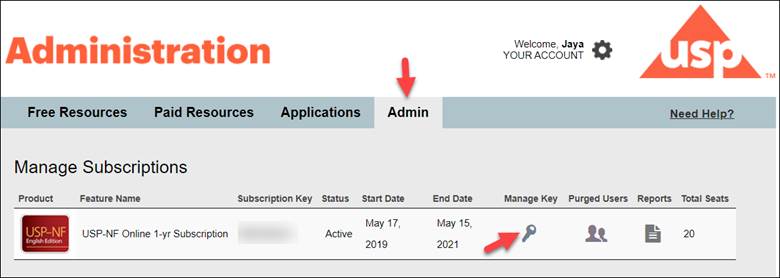
To blacklist or block either an individual email address or a domain to your subscription key:
- Click on the +Add button.

- Enter in the individual email address or the email domain under Email/Domain. Please note that the @ is not necessary if you are adding an email domain. For example, just enter google.com.
- Optionally, you can add a description of what you are adding if necessary.
- Click Add to add the entry in the list.

Once added, you can remove an individual user or an email domain by clicking on the x icon.
Once added, you can also edit an individual user or an email domain by clicking on the pencil icon.
Note: If you exclude a domain, such as gmail.com and there are Access Point accounts associated to your subscription key with that domain, those users will not be able to login. The Admin will have to remove these accounts from the subscription key to free up the seats.